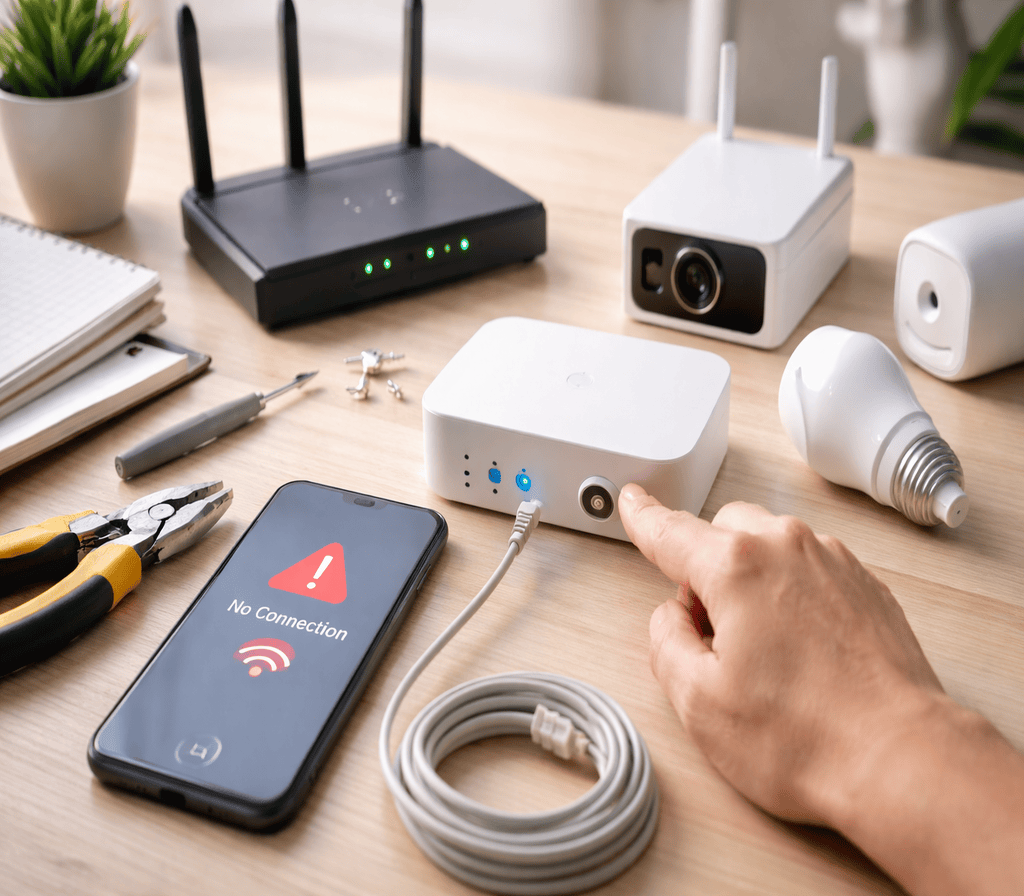
Smart home technology has transformed modern living by offering convenience, security, and automation. From smart lights and thermostats to security cameras and voice assistants, connected devices make everyday life easier. However, many users experience frustrating connectivity problems that interrupt their smart home experience.
Devices disconnecting, slow responses, apps failing to sync, or hubs going offline are common issues faced by homeowners. The good news is that most of these problems can be fixed with simple steps.
In this guide, you will learn how to identify and resolve smart home connectivity problems by resetting hubs, updating firmware, and managing wireless interference effectively.
Understanding Smart Home Connectivity
Smart home devices rely on wireless communication to function properly. Most systems use one or more of the following technologies:
- Wi-Fi
- Bluetooth
- Zigbee
- Z-Wave
- Thread
These networks allow devices to communicate with each other and with your smartphone or cloud services. When any part of this network becomes unstable, connectivity problems begin to appear.
Common causes include weak signals, outdated software, overloaded routers, and physical interference.
Understanding how your system works is the first step towards fixing it.
Common Smart Home Connection Problems
Before applying solutions, it is important to recognise the most frequent issues.
1. Devices Going Offline
Smart bulbs, plugs, or cameras may appear offline in the app even though they have power.
2. Delayed Responses
Commands take several seconds to execute or fail completely.
3. App Synchronisation Failures
The mobile app cannot detect devices or update their status.
4. Hub Disconnection
The central hub loses connection to devices or the internet.
5. Random Dropouts
Devices disconnect and reconnect repeatedly without warning.
These problems usually indicate network instability, outdated software, or signal interference.
Resetting Smart Home Hubs and Devices
Resetting is often the fastest way to resolve connection issues. It clears temporary errors and restores normal communication.
When Should You Reset?
You should consider resetting if:
- Devices refuse to reconnect
- The hub freezes or becomes unresponsive
- Updates fail repeatedly
- Network changes have occurred
How to Reset a Smart Hub
Follow these general steps (check manufacturer instructions for exact details):
- Unplug the hub from power
- Wait for 30–60 seconds
- Reconnect the power cable
- Allow the hub to restart fully
- Check connection status in the app
This soft reset refreshes the system without deleting settings.
Factory Reset (Last Resort)
If basic resetting does not work, a factory reset may be necessary.
This will:
- Remove all connected devices
- Erase saved settings
- Require full reconfiguration
Only perform a factory reset when other methods fail.
Steps usually include holding a reset button for 10–15 seconds until indicator lights flash.
Resetting Individual Devices
Sometimes only one device is affected.
To reset:
- Turn the device off
- Remove batteries (if applicable)
- Hold the reset button
- Reconnect to the app
After resetting, re-pair the device with your hub or network.
Keeping Firmware and Software Updated
Outdated firmware is one of the biggest causes of smart home problems.
Manufacturers regularly release updates to:
- Fix bugs
- Improve security
- Enhance compatibility
- Improve stability
Ignoring updates can lead to frequent disconnections. Learn more at TechToTable’s Smart Home Guides.
Why Firmware Updates Matter
Modern smart devices depend on cloud services and evolving standards. Without updates:
- Devices may stop communicating properly
- Apps may become incompatible
- Security vulnerabilities increase
- Performance declines
Updating ensures smooth operation.
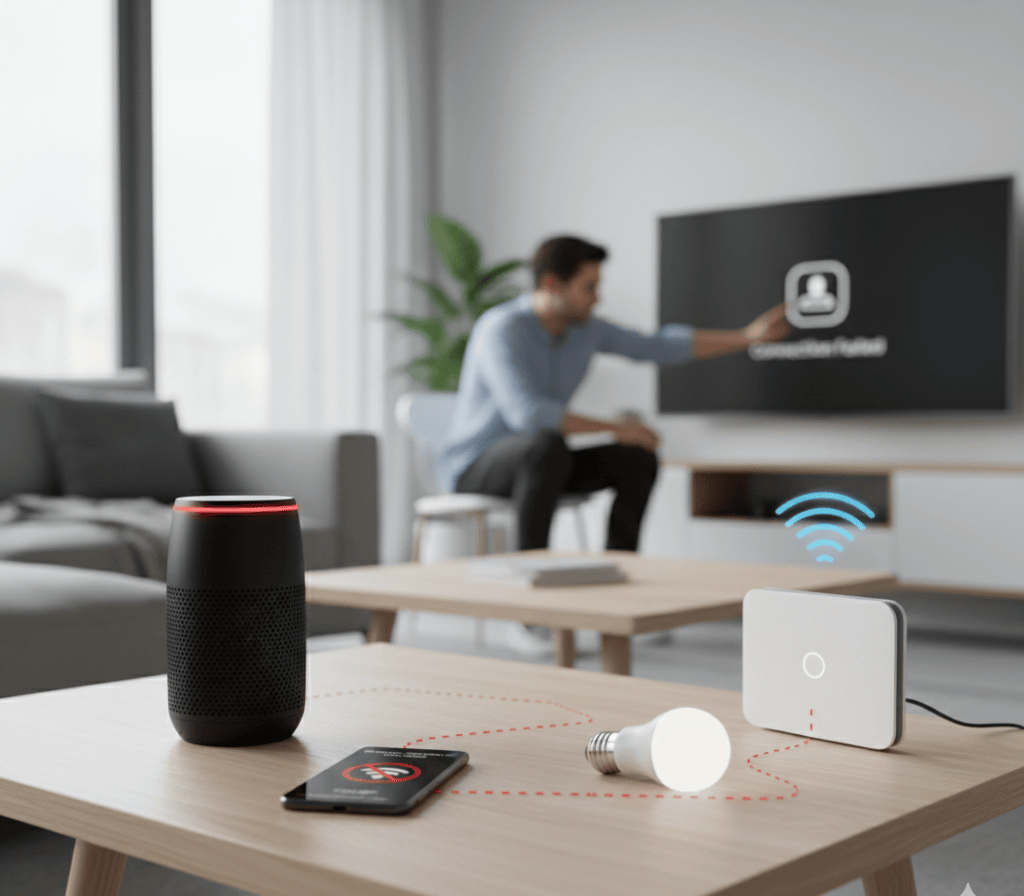
How to Check for Updates
Most systems allow updates through their mobile app.
General steps:
- Open the device app
- Go to Settings
- Select Device Management
- Check for Firmware Updates
- Install if available
Keep your smartphone app updated as well.
Automatic Updates (Recommended)
Enable automatic updates whenever possible. This ensures your system stays current without manual effort.
Automatic updates reduce long-term problems and maintenance.
Updating Your Router
Do not forget your internet router.
Outdated router firmware can:
- Limit compatibility
- Reduce speed
- Cause frequent drops
Check your router’s admin panel for updates every few months.
Managing Wireless Interference
Interference is one of the most overlooked causes of smart home issues.
Wireless signals can be disrupted by many everyday objects and devices.
Common Sources of Interference
- Microwaves
- Cordless phones
- Baby monitors
- Bluetooth devices
- Neighbouring Wi-Fi networks
- Thick walls and metal structures
These interfere with Wi-Fi, Zigbee, and Bluetooth signals.
Improve Device Placement
Proper placement significantly improves performance.
Best practices:
- Place hubs centrally in your home
- Avoid corners and basements
- Keep away from metal objects
- Position above floor level
- Maintain clear line-of-sight where possible
A centrally located hub improves coverage.
Change Wi-Fi Channels
Wi-Fi routers operate on channels. When too many networks use the same channel, congestion occurs.
Access your router settings and:
- Switch to a less crowded channel
- Prefer 5 GHz band for short distances
- Use 2.4 GHz for wider coverage
Modern routers often auto-select optimal channels.
Reduce Network Congestion
Too many connected devices can overload your network.
Consider:
- Disconnecting unused devices
- Upgrading to a mesh system
- Using a dedicated smart home network
- Limiting background streaming
This improves stability.
Strengthening Your Home Network
A strong network is the foundation of any smart home.
Upgrade Your Router
If your router is over four years old, upgrading can solve many issues.
Look for:
- Dual-band or tri-band support
- Mesh compatibility
- High device capacity
- Strong security features
Modern routers handle smart homes better.
Use Mesh Wi-Fi Systems
Large homes benefit from mesh networks.
They:
- Provide uniform coverage
- Reduce dead zones
- Improve stability
- Simplify management
Mesh systems are ideal for multi-storey houses.
Use Ethernet Where Possible
For hubs and bridges, wired connections are more reliable than wireless.
If possible:
- Connect hubs via Ethernet
- Reduce Wi-Fi dependency
- Improve response time
This enhances performance.
Troubleshooting Step-by-Step
When facing connectivity issues, follow this structured approach.
Step 1: Check Internet Connection
Ensure your broadband is working properly.
Restart your modem and router if needed.
Step 2: Restart Hub and Devices
Perform soft resets first.
Step 3: Update All Software
Update:
- Device firmware
- Mobile app
- Router firmware
Step 4: Check Signal Strength
Move devices closer to hubs or routers.
Step 5: Remove and Re-add Devices
Delete problematic devices and reconnect them.
Step 6: Review Interference Sources
Relocate hubs away from electronics.
Step 7: Contact Support
If problems persist, manufacturer support can analyse logs.
Preventing Future Connectivity Problems
Prevention saves time and frustration.
Follow these habits:
- Perform monthly update checks
- Reboot system quarterly
- Keep firmware current
- Maintain good device placement
- Avoid overcrowding networks
- Replace ageing hardware
Regular maintenance ensures reliability.
Smart Home Security and Stability
Connectivity problems sometimes indicate security issues.
Protect your system by:
- Using strong passwords
- Enabling two-factor authentication
- Updating regularly
- Avoiding public Wi-Fi control
- Monitoring connected devices
Secure networks are more stable.
When to Consider Professional Help
If your home has:
- Multiple floors
- Thick walls
- Over 50 devices
- Frequent dropouts
A professional network assessment may be worthwhile.
Specialists can design customised networks for smart homes.
Frequently Asked Questions
How do I troubleshoot smart home devices?
Effective troubleshooting follows a simple hierarchy:
Check Power: Ensure the device is fully charged or plugged in.
Verify Connection: Confirm the device is on the correct Wi-Fi band (most smart devices require 2.4GHz rather than 5GHz).
App Updates: Ensure both the device firmware and the controlling app are updated to the latest version.
Reset: Perform a factory reset as a last resort to clear software glitches.
What are common problems with smart homes?
The most frequent issues include:
Intermittent Connectivity: Devices dropping off the network due to weak Wi-Fi.
Interoperability Issues: Difficulty getting devices from different brands to communicate.
Latency: Delays between a command (like voice control) and the device responding.
Battery Drain: Fast-depleting batteries in sensors or smart locks.
How do I solve internet connection problems?
First, determine if the issue is with your provider or your hardware by testing the connection on multiple devices. If the internet is slow everywhere, check your cables for damage and ensure your firmware is up to date. If only specific devices are struggling, clear their network cache or “Forget” and reconnect to the Wi-Fi network.
How do I solve network problems in my home?
To resolve most home network issues, start by power cycling your router (unplugging it for 30 seconds). Ensure your router is placed in a central, open location away from thick walls or metal objects. If dead zones persist, consider upgrading to a Mesh Wi-Fi system to ensure a consistent signal throughout your property.
Final Thoughts
Smart home connectivity problems are frustrating, but they are rarely permanent. In most cases, simple actions such as resetting hubs, updating firmware, and managing interference can restore normal performance.
By maintaining your system regularly and optimising your network setup, you can enjoy a reliable, responsive, and stress-free smart home environment.
With the right approach, your connected devices will work together seamlessly, making your home smarter, safer, and more comfortable. Learn more at TechToTable’s Smart Home Guides.